Complete QR Menu Setup Checklist for Restaurants
Introduction: Why a Checklist Matters for QR Menus
QR menus seem simple—generate a code, upload a menu, and you’re done. In reality, many restaurants struggle because they skip critical setup steps. The result? Slow-loading menus, confused customers, staff frustration, and negative feedback.
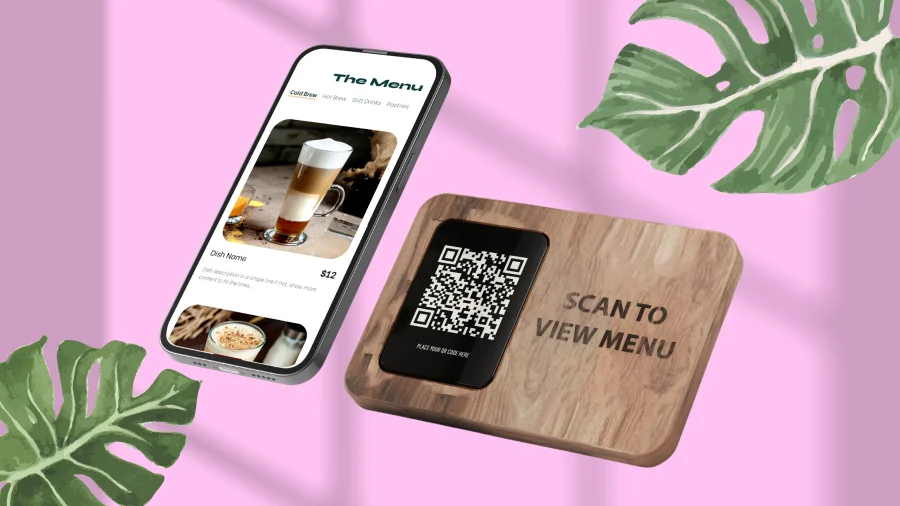
A structured qr menu checklist ensures nothing is missed. This qr menu setup guide walks you through every step—from planning and design to testing and daily operations—so your QR menu actually works in real service conditions, starting with how you create a QR code menu in the first place.
Phase 1: Planning Your QR Menu Setup
1. Define the Purpose of Your QR Menu
Before choosing tools or designs, clarify why you’re using a QR menu.
Common Goals
- Reduce printing costs
- Speed up ordering
- Handle frequent menu changes
- Support multiple languages
- Improve accessibility
Clear goals shape every decision that follows in your qr menu setup guide.
2. Decide on a Hybrid or QR-First Approach
Best practice for most restaurants:
- QR menu as the default
- Printed menus available on request
This prevents accessibility issues and reduces resistance—especially important for small restaurants with limited staff.
3. Choose Who Manages the Menu
Assign responsibility early.
Checklist
- One owner or manager controls updates
- Backup person trained
- No multiple editors during service
Clear ownership prevents errors.
Phase 2: Menu Content & Structure
4. Organize Restaurant Menu Categories
Strong structure is critical.
Checklist
- 5–8 main categories
- Logical customer-facing names
- Subcategories for large menus
- Popular items placed first
Good organization improves speed and reduces questions.
5. Review Menu Text for Mobile Reading
Phone screens change how people read.
Checklist
- Short descriptions
- Clear pricing
- No marketing fluff
- Easy-to-scan formatting
Mobile readability is essential in any qr menu checklist.
6. Decide on Photos (Optional)
Photos help—but only when used carefully.
Checklist
- Use photos for bestsellers only
- Compress images
- Avoid stock photos
- Skip photos entirely if unsure
Speed matters more than visuals.
Phase 3: Technical Setup
7. Choose a Reliable QR Menu Platform
Avoid free tools that cut corners.
Checklist
- Fast hosting
- Mobile-first design
- HTTPS security
- Easy updates
- No forced ads
Your platform determines performance and reliability.
8. Test Menu Loading Speed
Slow menus kill adoption.
Checklist
- Loads in under 3 seconds
- Works on mobile data
- Works on restaurant Wi-Fi
- Tested during peak hours
Speed is non-negotiable.
9. Generate and Secure QR Codes
Your QR code is part of the guest experience.
Checklist
- High-contrast design
- Large enough to scan easily
- Branded if possible
- Durable printing
- Checked regularly for tampering
This step is often overlooked in a qr menu setup guide.
Phase 4: Placement & Visibility
10. Place QR Codes Where Guests See Them Immediately
Bad placement reduces scans.
Best Locations
- Table tents
- Table stickers
- Menu holders
- Bar counters
Avoid hiding QR codes or placing them too far away.
11. Add Simple Scan Instructions
Never assume guests know what to do.
Checklist
- “Scan to view menu” text
- Wi-Fi info nearby (if needed)
- Clear, friendly language
Small cues improve usage dramatically.
Phase 5: Staff Training
12. Train Staff on How to Introduce the QR Menu
Staff attitude shapes customer perception.
Checklist
- Friendly explanation
- Offer printed menus without hesitation
- Assist when needed
- Never blame guests’ phones
Staff confidence prevents complaints.
13. Prepare Staff for Common Issues
Anticipate problems.
Checklist
- What to do if menu doesn’t load
- Where printed menus are stored
- How to explain menu changes
- Who updates the menu
Prepared teams handle issues calmly.
Phase 6: Accessibility & Backup Options
14. Keep Printed Menus Available
Accessibility is not optional.
Checklist
- Enough printed menus for peak times
- Same prices and items as QR menu
- Clean and readable
Hybrid systems perform best.
15. Test Accessibility Features
Good accessibility improves usability for everyone.
Checklist
- Text zoom works
- Strong contrast
- Buttons easy to tap
- Screen-reader compatibility (if possible)
Accessibility belongs in every qr menu checklist.
Phase 7: Pre-Launch Testing
16. Test Like a Real Customer
Don’t rely on assumptions.
Checklist
- Test on different phones
- Test with low battery mode
- Test in low lighting
- Test without Wi-Fi
Real-world testing reveals real problems.
17. Run a Soft Launch
Before full rollout:
- Use QR menus during slower shifts
- Collect staff feedback
- Watch customer behavior
Small adjustments here prevent big issues later.
Phase 8: Ongoing Management
18. Schedule Regular Menu Reviews
Menus change—systems should support that.
Checklist
- Weekly review during busy seasons
- Immediate updates for sold-out items
- Price accuracy checks
Tools that let you update menus across multiple devices instantly are essential here.
19. Monitor Customer Feedback
Pay attention to:
- Questions staff receive
- Requests for printed menus
- Online reviews mentioning menus
Feedback shows what to improve.
20. Audit QR Codes and Performance Monthly
Physical and digital checks matter.
Checklist
- QR codes still scan correctly
- No damaged or missing codes
- Menu loads quickly
- Links still secure
Maintenance keeps systems reliable.
Quick QR Menu Setup Checklist (Summary)
✅ Clear purpose
✅ Organized categories
✅ Mobile-friendly design
✅ Fast loading speed
✅ Reliable hosting
✅ Proper QR placement
✅ Staff training
✅ Printed menu backups
✅ Accessibility tested
✅ Ongoing reviews
If all boxes are checked, your QR menu is set up for success.
FAQs About QR Menu Setup
1. How long does QR menu setup take? Usually 1–2 days with proper planning.
2. Do I need a designer? No—most QR menu tools are template-based.
3. Should QR menus replace printed menus? No. Hybrid setups work best.
4. What’s the most common setup mistake? Slow-loading menus and no backup options.
5. How often should menus be updated? As often as items or prices change—instantly if possible.
6. Is QR menu setup expensive? No. It’s usually cheaper than ongoing printing.
Conclusion: A Checklist Turns Technology Into Hospitality
QR menus succeed or fail based on setup—not on the technology itself. A thorough qr menu checklist ensures your digital menu supports guests, staff, and operations instead of creating friction.
By following this complete qr menu setup guide, restaurants avoid common mistakes, improve adoption, and deliver a smoother dining experience from day one—whether that’s a neighborhood café or a full-service hotel restaurant. When QR menus are set up correctly, customers don’t notice the technology—they just enjoy the meal.